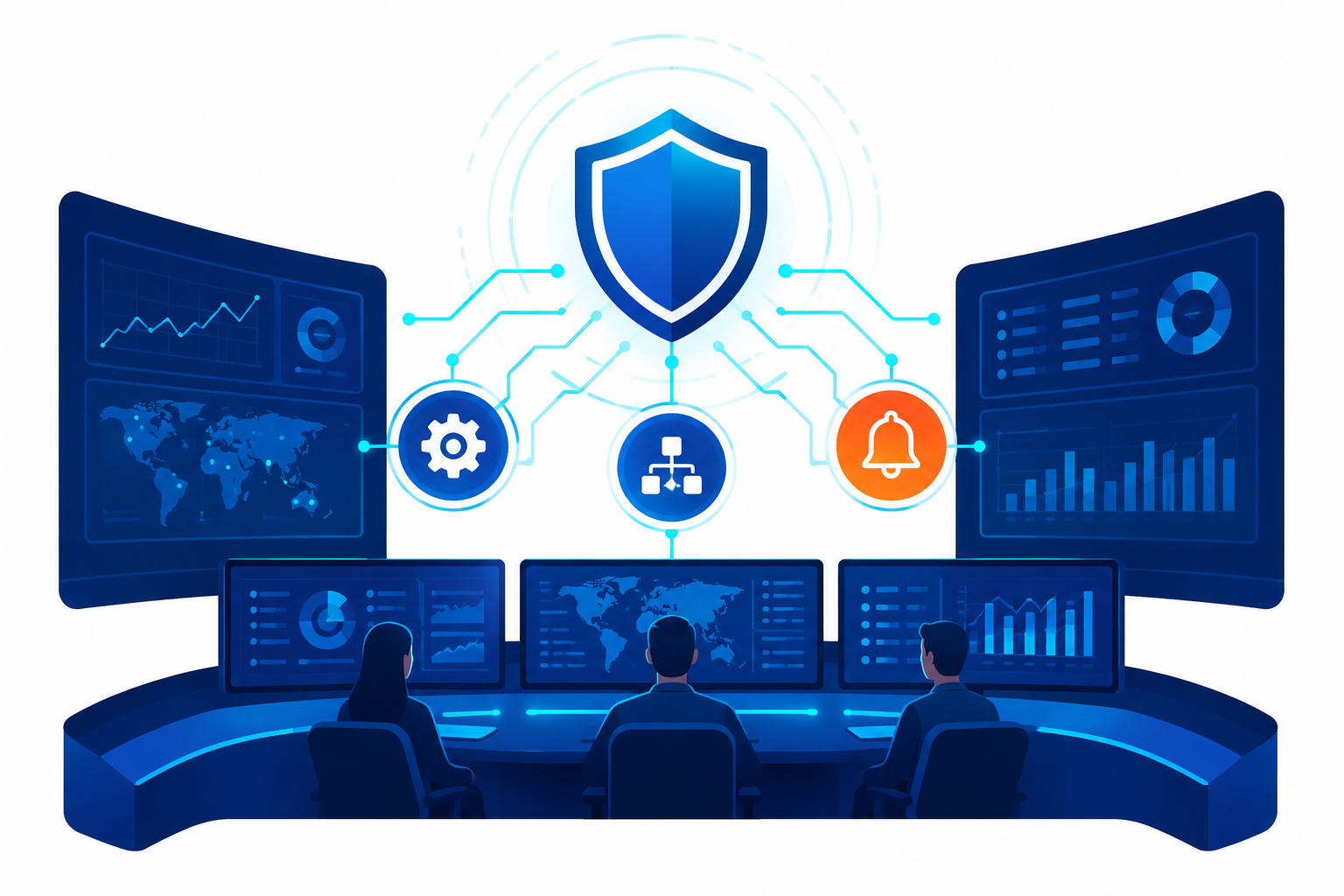
A mid-sized security team using Microsoft Sentinel can see thousands of alerts a week—and according to Microsoft’s own SOC research, analysts who triage manually often spend more time closing duplicate or low-fidelity incidents than investigating real threats [Source: Microsoft Learn—Automation in Microsoft Sentinel, learn.microsoft.com]. That’s the exact problem automation rules and playbooks in Microsoft Sentinel were built to solve.
If you’re studying for the SC-200: Microsoft Security Operations Analyst certification, or you’re the analyst who gets paged at 2 a.m. for an incident that could have closed itself, this is one of the highest-leverage skills you can build. In the next few sections, you’ll learn exactly what automation rules and playbooks are, how they work together, and how to configure both from scratch—with the same logic Microsoft expects you to demonstrate on exam day.
Read Also: SC-200 Certification: A Complete Guide to Passing in 2026
Table of Contents
What Are Automation Rules and Playbooks in Microsoft Sentinel?
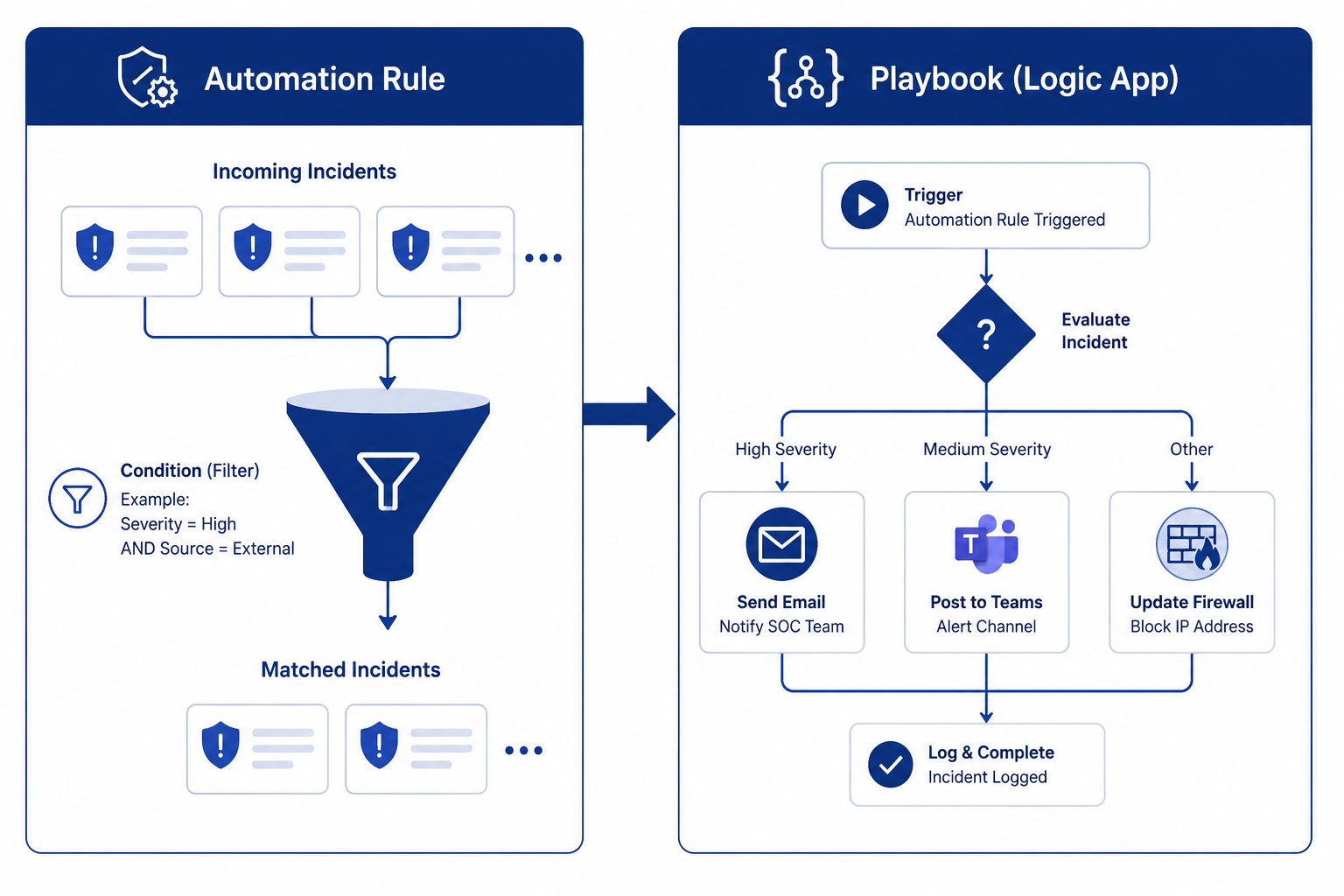
Think of an automation rule as the receptionist at a busy clinic and a playbook as the specialist doctor down the hall. The receptionist looks at every incoming patient (incident), decides who’s low-priority and can be checked in without a doctor, and routes the serious cases to the right specialist. That’s essentially what happens inside Microsoft Sentinel.
An automation rule is a lightweight, no-code layer that evaluates every incident as it’s created or updated and decides what happens next—tag it, assign it, close it, or hand it off to a playbook. A playbook, by contrast, is a full workflow built on Azure Logic Apps that can call external APIs, message a Teams channel, open a ticket, or disable a compromised account based on workflows built in Azure Logic Apps, which means you get all the power, customizability, and built-in templates of Logic Apps. Together, automation rules and playbooks in Microsoft Sentinel form the platform’s SOAR layer—Security Orchestration, Automation, and Response.
Read Also: What Is Microsoft Sentinel? A Beginner’s Best Guide to Cloud SIEM
Why Automation Matters for Your SOC (and the SC-200 Exam)
Alert fatigue is one of the most commonly cited failure points in security operations, and Microsoft’s own documentation frames the problem directly: security teams are typically inundated with security alerts and incidents regularly, at volumes so large that available personnel are overwhelmed, which results in ignored alerts and unnoticed intrusions.
That’s not a hypothetical—it’s the exact scenario Microsoft Sentinel’s SOAR capabilities exist to prevent. For SC-200 candidates, this matters twice over. First, the “Configure protections and detections” domain explicitly tests your ability to design and configure automation. Second, in a real SOC, knowing how to build automation rules and playbooks in Microsoft Sentinel is often the difference between a team that drowns in noise and one that spends its time on genuine threats.
There’s also a cost dimension worth understanding early. Automation rules themselves are free—they run natively inside Sentinel. Playbooks, however, are built on Azure Logic Apps, so because playbooks use Azure Logic Apps, additional charges can apply. Knowing this trade-off—free filtering logic versus metered workflow execution—is exactly the kind of practical detail that separates someone who’s memorized definitions from someone who can actually architect a solution.
How Automation Rules Work
An automation rule sits at the front door of every incident in Microsoft Sentinel. Microsoft Sentinel uses automation rules to allow users to manage incident handling automation from a central location, and you can use them to assign more advanced automation to incidents and alerts using playbooks, automatically tag, assign, or close incidents without a playbook, automate responses for multiple analytics rules at once, and create lists of tasks for your analysts to perform when triaging, investigating, and remediating incidents. In other words, an automation rule doesn’t need a playbook attached at all—for simple actions like closing a known-benign incident type, the rule handles it entirely on its own, with zero Logic App executions and zero extra cost.
Trigger Conditions and Timing
Every automation rule needs a trigger—the event that causes it to fire—and a set of conditions that must be true before it acts. Microsoft recommends applying automation rules when incidents are created or updated to further streamline automation and simplify complex workflows for your incident orchestration processes. Conditions can filter on analytic rule name, severity, entity type, tags, or even custom details extracted from the underlying data. This granularity is what lets you write a rule that says, in effect, “only run this for incidents from the ‘Impossible Travel’ analytic rule, with high severity, involving a specific department’s user group.”
Actions Without Code
Not every response needs a full workflow. Automation rules support direct, no-code actions: changing incident status, changing severity, assigning an owner, adding tags, or adding a comment with next-step instructions for the analyst on shift. This is a subtle but important exam point—you don’t always need a playbook to automate a response. If the task is a simple property change, the rule alone is the right tool, and it executes faster and cheaper than spinning up a Logic App.
How Playbooks Work Under the Hood
Playbooks are collections of procedures that can be run from Microsoft Sentinel in response to an entire incident, to an individual alert, or to a specific entity, and they can be attached to an automation rule to run automatically when specific alerts are generated or when incidents are created or updated. Because playbooks are built on Logic Apps, every playbook is really a visual, drag-and-drop workflow of connectors and actions—send an email, post a Teams message, call the Microsoft Graph API, isolate a device via Defender for Endpoint, and hundreds more.
Key Components of Sentinel’s SOAR Toolkit
Before you configure anything, it helps to know the moving parts by name. Let’s break down the three components you’ll touch most often.
1. Automation Rules
The central, no-code orchestration layer described above. Every incident passes through your active automation rules in a defined order, and you can reorder them to control which rule takes priority when multiple rules could apply to the same incident.
2. Playbooks (Logic Apps)
The workflow engine. You access and manage playbooks from the Automation area—the Active playbooks tab shows all the playbooks you have access to, filtered by your subscription view, and by default, a playbook can be used only within the subscription it belongs to unless you specifically grant Microsoft Sentinel permissions to the playbook’s resource group. This subscription-scoping detail matters in enterprise environments where Sentinel and your Logic Apps live in different subscriptions.
3. The AI Playbook Generator
Microsoft has recently extended this toolkit with an AI-assisted authoring experience. This tool generates a Python playbook with documentation and a visual flowchart, streamlining workflows from creation to execution, and it’s flexible enough to automate tasks like team notifications, ticket updates, data enrichment, or incident response across Microsoft and third-party tools. It’s worth knowing this exists, even if the SC-200 exam focuses primarily on the manual configuration path—Microsoft’s product direction is clearly moving toward assisted playbook creation.
Step-by-Step: Configuring Your First Automation Rule and Playbook
Here’s the practical sequence you’ll follow, whether you’re in a lab environment for SC-200 preparation or configuring a production workspace.
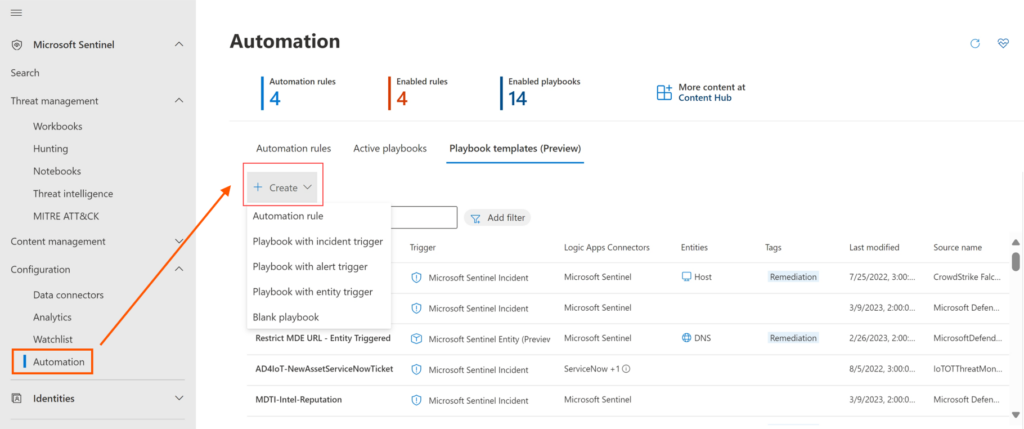
- Create the playbook first. In the Azure portal, go to Microsoft Sentinel > Automation > Create > Playbook with incident trigger. This opens the Logic Apps designer, where you’ll build your response workflow using connectors.
- Grant permissions. Because playbooks make use of Azure Logic Apps, you’ll need the Logic App Contributor role on the resource group that contains the playbooks you want to run, and Sentinel itself needs a service account with permission to trigger it.
- Design the workflow. Add actions for each remediation step—for example, sending an approval email, waiting for a response, and then calling an action to disable a user or isolate a device.
- Create the automation rule. Go to Microsoft Sentinel > Automation > Create > Automation rule. Set your trigger (when an incident is created or when an incident is updated).
- Define conditions. Filter by analytic rule name, severity, tags, or entity—be as specific as the scenario requires.
- Add actions. Choose “Run playbook” and select the playbook you built, or choose a direct no-code action if a playbook isn’t needed.
- Set rule order and expiration. Decide where this rule sits relative to others, and optionally set an expiration date for temporary rules (useful during incident response to a specific campaign).
- Test with a simulated or real incident to confirm the rule fires and the playbook executes as expected.
Best Practices for Implementing Automation Rules and Playbooks
Getting automation rules and playbooks in Microsoft Sentinel to actually reduce analyst workload—rather than just adding another system to babysit—comes down to a handful of disciplined habits.
- Start with no-code rules. Auto-close known false positives and auto-tag low-severity incidents before you build a single Logic App. This alone often removes a large share of analyst busywork.
- Scope playbooks narrowly. A playbook that does one thing well (block an IP, open a ticket) is easier to test, audit, and reuse than a monolithic workflow that tries to handle every scenario.
- Use approval steps for high-impact actions. Automatically disabling a user or isolating a production server should usually pause for human approval, exactly as shown in Microsoft’s own compromised-user sample scenario.
- Version and document your playbooks. Treat logic apps like code—use source control, naming conventions, and change logs.
- Review automation rule order regularly. As your rule count grows, ordering conflicts become the most common source of “Why didn’t this incident auto-close?” support tickets.
Common Mistakes and Misconceptions
A few misconceptions recur in both real deployments and SC-200 prep sessions. The biggest one: assuming you always need a playbook to automate anything. As covered earlier, plenty of triage logic—closing, tagging, assigning—needs nothing but an automation rule. Building a logic app for that is unnecessary cost and complexity.
The second common mistake is attaching playbooks to analytics rules for new configurations. This pattern used to be standard but is now discouraged and being phased out in favor of automation rules, as covered in the section above. The third mistake is treating playbooks as “set and forget.” Logic Apps depend on external connectors—a Teams webhook or a ticketing API—and those can silently break when credentials expire or an API changes. Without monitoring, a broken playbook can fail quietly while your team assumes automated response is still happening.
Real-World Example: Stopping a Compromised User Automatically
Microsoft’s own sample scenario is a useful template for understanding how these pieces click together in practice. An incident is created for a potentially compromised user, and an automation rule is triggered to call a playbook. From there, the playbook opens a ticket in an IT ticketing system such as ServiceNow, sends a message to the security operations channel in Teams or Slack, and emails the senior network admin and security admin with the full incident details and Block or Ignore option buttons—then waits for a response before continuing.
If the admin selects Block, the playbook sends a command to Microsoft Entra ID to disable the user and a separate command to the firewall to block the associated IP address. Notice what’s happening structurally: the automation rule made the routing decision in milliseconds, and the playbook handled the multi-system, human-in-the-loop workflow. That division of labor is the whole point of automation rules and playbooks in Microsoft Sentinel.
Conclusion
Three things are worth carrying forward from this guide. First, automation rules and playbooks in Microsoft Sentinel serve different jobs—automation rules make fast, no-code triage decisions, while playbooks execute richer, multi-system workflows through Logic Apps. Second, Microsoft has clearly standardized on automation rules as the supported way to trigger playbooks, phasing out the older analytics-rule attachment method. Third, the biggest wins usually come from disciplined basics: scoped playbooks, human approval on high-impact actions, and regularly auditing rule order.
If you’re preparing for SC-200, practice building both a standalone automation rule and a playbook-attached rule in a lab workspace before exam day—nothing cements this knowledge like watching an incident close itself. Ready to go deeper? Check out our companion guide on Sentinel analytics rules, or drop a comment with the automation scenario you’re trying to build—we read every one.